Download the free installer
Choose Windows on the official download page. The file is an installer, so you do not need to extract a ZIP.
Download Watch for Windows ↗Use your private purchase page for Take the Helm. Keep that link private.
YOUR FIRST SPACE BATTLE
A guided first launch for the free Watch edition, with real Windows screenshots and Linux instructions. No purchase or separate Java/Python installation needed.
Current guide: Windows 0.9.7-preview · Linux 0.9.6-preview. Application screenshots show Windows; Linux window styling can differ.
OLED care is the design brief. Sparse wireframe ships leave more of the scene black than solid filled shapes. The pitch-black background leaves background pixels unlit on OLED; dimming controls brightness, while menus and prompts move or fade to avoid fixed bright interface elements. AFK Wars is intended to limit persistent bright content while giving you a battle worth watching.
WINDOWS 11 · X64
Choose Windows on the official download page. The file is an installer, so you do not need to extract a ZIP.
Download Watch for Windows ↗Use your private purchase page for Take the Helm. Keep that link private.
The installer is digitally signed and timestamped. You can inspect it in the file’s Properties → Digital Signatures → Details. Windows should report that the signature is OK.
A new signed download may still show a SmartScreen reputation warning. Read our Windows download-warning guidance. Keep security protections enabled; contact support if a signature is missing or invalid, the publisher is unknown, or a threat is reported.
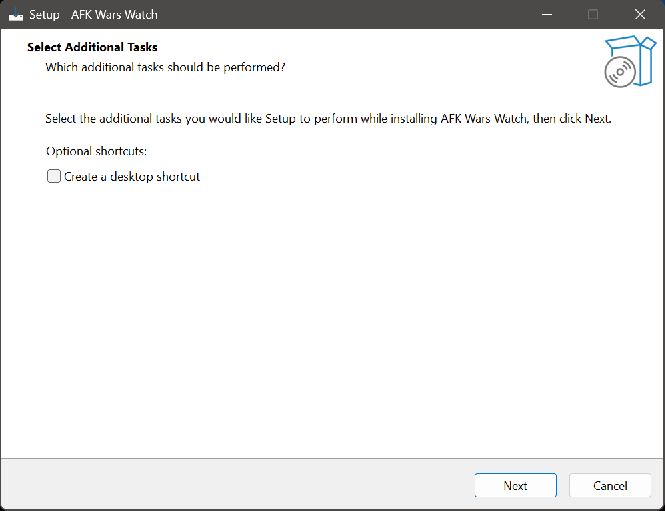
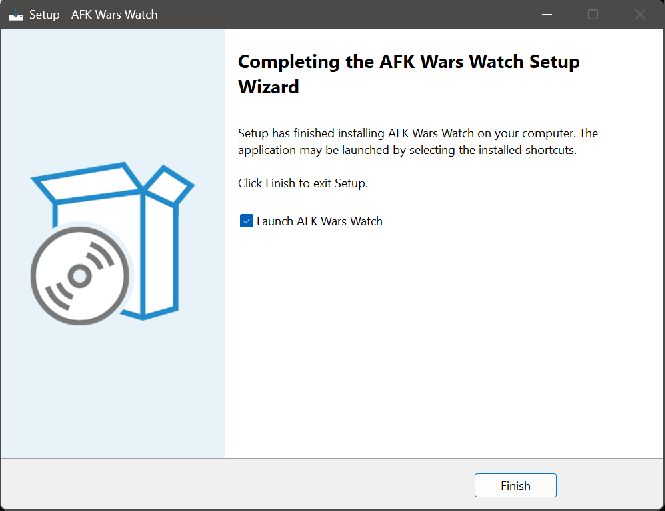
Choose whether to create a desktop shortcut (optional and unchecked by default), then select Next. Review the summary and select Install. When setup completes, leave Launch AFK Wars Watch selected and choose Finish. Automatic startup is not added for you.
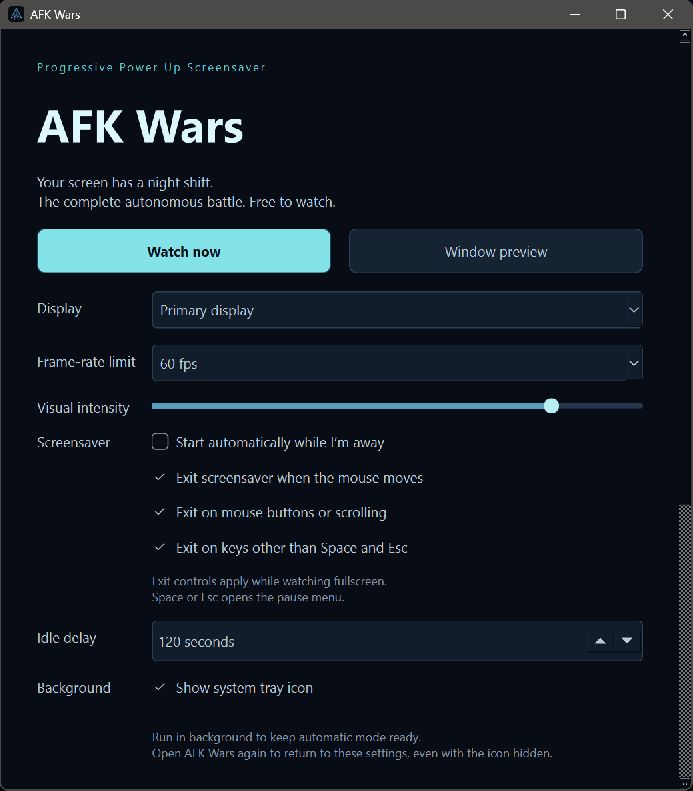
In the launcher, choose Watch now for fullscreen or Window preview to try it in a window. Watch is fully autonomous: you do not need to pilot a ship or buy an upgrade.
MAKE IT FIT YOUR DESKTOP
Use Window preview or Watch now to check the picture on your display before enabling idle activation.
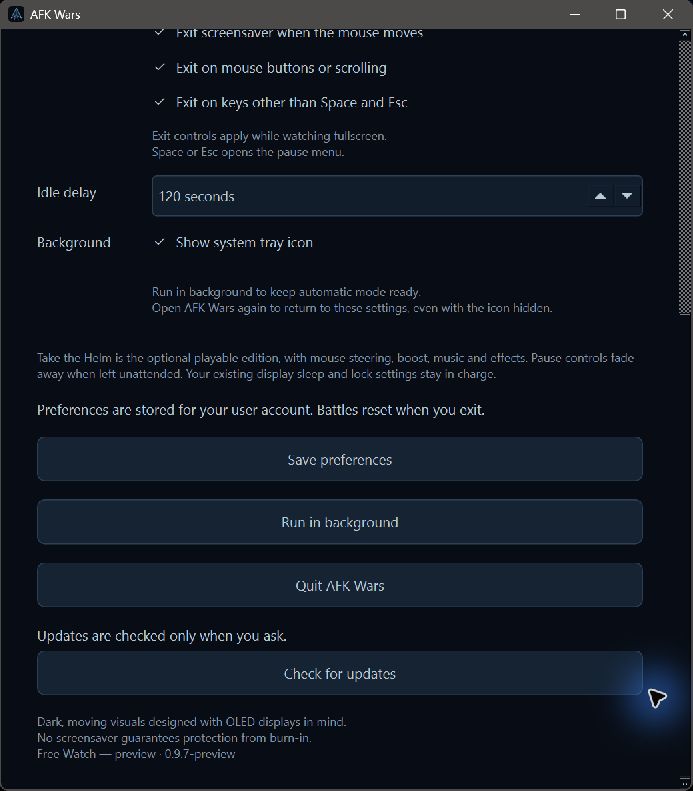
Select Start automatically while I’m away and choose an Idle delay. Select Save preferences, then Run in background to keep automatic mode ready.
AFK Wars is entertainment, with moving visuals designed with OLED displays in mind. It does not guarantee protection from burn-in. Keep your normal display-care and sleep settings.
Reopen the launcher to bring settings back, even if its tray icon is hidden. Automatic activation does not mean the app starts automatically when you sign in to Windows.
In Watch, Space or Esc pauses the simulation. Space resumes; Esc again exits. Ordinary input dismisses fullscreen watching according to your exit settings. Take the Helm has separate piloting controls, described on the downloads page.
LINUX · X86-64
The reference environment is Ubuntu 24.04 with GNOME/X11. Wayland and other desktop sessions are not yet verified; automatic idle activation depends on supported desktop services.
If idle activation is unavailable, use Watch now for manual viewing. Please include your desktop and X11/Wayland session type when reporting an idle problem.
IF SOMETHING GETS IN THE WAY
Keep your antivirus and SmartScreen enabled. Read the Windows warning guide and send support the exact message if you are unsure. Do not send private purchase links or update codes.
Check that the app is running, automatic activation is enabled, and the idle delay has elapsed. Screen lock and sleep may take priority. On Linux, check your desktop/session compatibility and try manual viewing. Tell us your OS, desktop and what you expected to happen.
Use Check for updates in the launcher’s update settings. Watch does not need a receipt. Take the Helm owners can use the private purchase link or Copy update code from their purchase page. In older 0.9.3 clients, use the raw update code. Keep codes and purchase links private.
Quit AFK Wars first. On Windows, use the app’s uninstaller. On Linux, remove any startup shortcut you added and delete the extracted application folder. Updating or reinstalling keeps settings; see the included README for their location.
TRIED WATCH? HELP SHAPE WHAT COMES NEXT.
You do not need to write a review. A quick note about what worked—or what got in your way—is useful.
Add your operating system and, if useful, screen resolution. If you need help, include the exact error or describe what happened.
Send feedback or ask for help ↗Opens your email app with a short template. Or email [email protected]. Please leave out private purchase links, update codes and personal details. We’ll ask permission before quoting your feedback publicly.